DMA Convert
The software ships no adapter of its own for any brand — it loads the leechcore.dll supplied by the vendor of the card you own. To convert to a different device, or when the vendor ships an updated file, just put the files in the right place. No client reinstall needed.
Put them in the install folder
- Open the install folder configured in the client settings (default
C:\HOOZi). - Copy the vendor's
leechcore.dll(and any companion files) there, overwriting the existing ones.
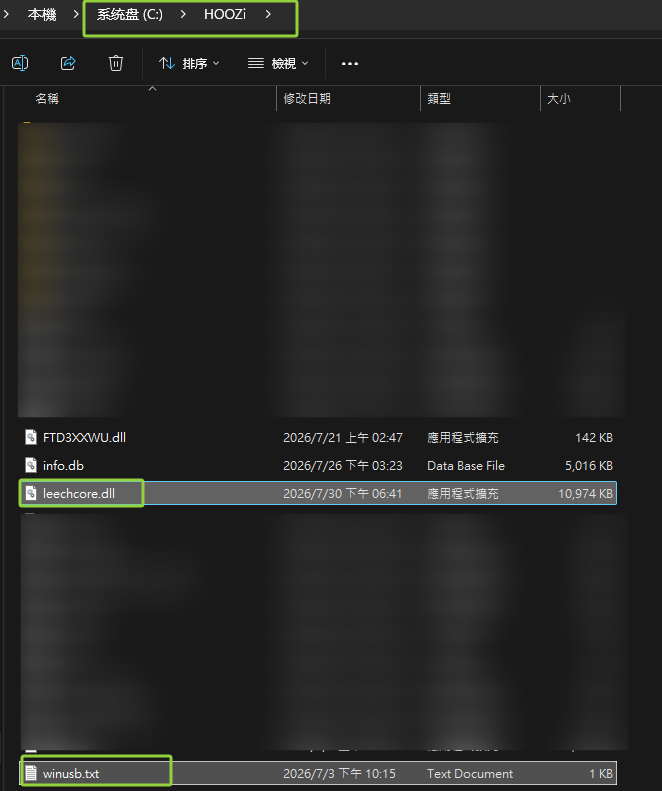
DLLs go in this folder only
Don't put leechcore.dll / vmm.dll and the like in an app folder. If you do, the software looks for the whole driver set in that folder alone, comes up short, and fails with "Initialize Memory Manager Failed". Delete any copies you placed there before.
The device asks for a license key
Current builds have no key input box. Almost all devices read the key from their own config file instead — keep it next to leechcore.dll:
- HOOZi devices: the config file is
winusb.txt, in the install folder - Other brands: the file name is whatever your vendor documents
A few devices want the config file in the app folder
Some AS converters' leechcore.ini, for example. That applies to config files only — DLLs still go in the install folder.
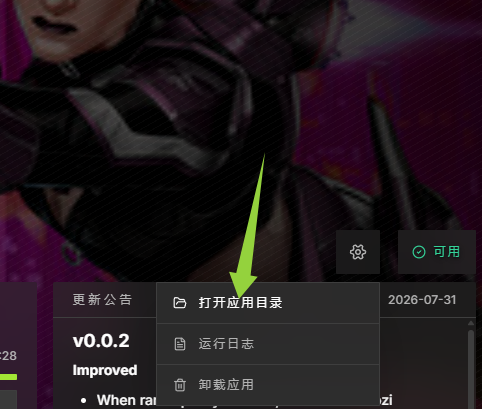
To open it: gear icon on the app's page → Open app folder.
Still not working after the convert
Check in this order:
- Right folder? It must be the install folder set in the client settings, not any folder named
HOOZiyou happen to find. - Did the copy actually overwrite? The modified date on
leechcore.dllshould be the moment you pasted. - Any leftover DLL in an app folder? Check this first if you get "Initialize Memory Manager Failed".
- Broke right after an update? The client may have synced the file back to the official build — redo the convert.
- Config file in the right place? See The device asks for a license key above.
- Nothing at all happens on launch? See Vendor component wants online authorisation below.
Vendor component wants online authorisation
Some vendors ship a leechcore.dll with its own online licence check: it pops up a dialog or opens a browser while loading, and terminates the whole process when the check fails. All of that happens before the sub-app's own code runs, so it never gets to log anything.
After a failed launch the client opens the Runtime log window automatically (the gear menu opens it too):
- A dialog was brought to the front — complete it there. The client keeps waiting and the launch resumes on its own.
- A browser tab is waiting for you — finish it.
- Authorisation keeps failing — that is the vendor's own licence flow and the client has no part in it. Take it to whoever sold you the device.
If it still fails, contact support with the full contents of the Runtime log and the brand / model of your device.
Console prompts cannot be answered
The sub-app's standard input is connected to the null device. If the vendor component asks you to "type the licence key / press any key" in a console, it reads empty input — showing the window will not help.