Client · Web Radar
The client's "Shared Radar" page lets you share your in-game radar with others — they just open a link in a browser, no install needed. There are two modes: official sharing and LAN direct; if you want people outside your LAN to watch too, you can also set up your own tunnel.
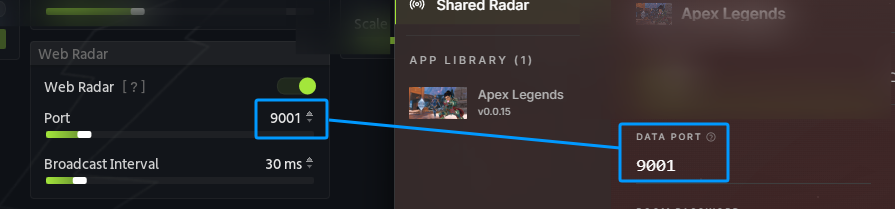
The data port must match the one set in the game software
The data port is used for communication between the radar service and the app. Make sure both sides use the same data port, or the radar won't connect and nothing will be shared.
Official sharing
No network setup needed — send the link and anyone can open it.
- Open the "Shared Radar" page in the client
- Select the app you want to share — this software needs an active subscription; the free tier doesn't support official sharing
- Set the mode to "Official"
- Click "Start Sharing"
- The page generates a share link and a QR code — send the link or have others scan the code, and it opens in their browser
- The "Viewers" panel on the right shows who's connected; click "Kick" to disconnect someone if needed
- The share link expires (shown on the page); usage is tracked monthly — direct P2P doesn't count against your quota, only traffic relayed across NATs does — used bandwidth and today's room count are both shown on the page
LAN direct
Use this when you're on the same Wi-Fi / network and don't want to go through the official server.
- Open the "Shared Radar" page and select an app
- Switch the mode to "LAN"
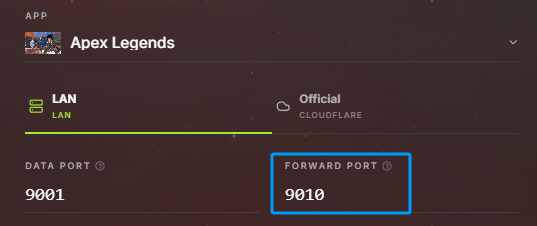
- Data port defaults to 9001 — keep it matching whatever data port is set in the game software; usually no need to change
- Forward port defaults to 9010 — both the page and the data go out through this one port
- Optionally set a "Room password" to restrict access; leave it blank and anyone with the link can watch
- Click "Start Local Sharing"
- This produces a local link — devices on the same network can open it directly or scan the QR code, no server involved, no data usage, and it stays up until you stop it manually
Private tunneling
LAN mode doesn't provide public internet tunneling on its own. If you want people outside your LAN to watch, you can run your own reverse proxy (e.g. frp) and forward the one port used by LAN mode (9010 by default).
The page and the data share that single port, so forwarding just that one is enough
Once frps is running on your own server, configure the client with this frpc.toml (replace SERVER_ADDRESS / YOUR_TOKEN with your server address and token):
serverAddr = "SERVER_ADDRESS"
serverPort = 7000
auth.method = 'token'
auth.token = 'YOUR_TOKEN'

[[proxies]]
name = "radar"
type = "tcp"
localIP = "127.0.0.1"
localPort = 9010
remotePort = 9010
Once frps / frpc are configured, just run them with the settings above. For a video tutorial, search for "frp 内网穿透" on Bilibili and follow one that walks through the frpc.toml config.